Reports
Generate PDF expense reports for treasurer reporting and audits
Generating Reports
Expense admins can generate PDF reports directly from the admin dashboard. Tap the report button in the top-right corner of the Expenses page and select the report type. Reports download instantly as a PDF.
Report Types
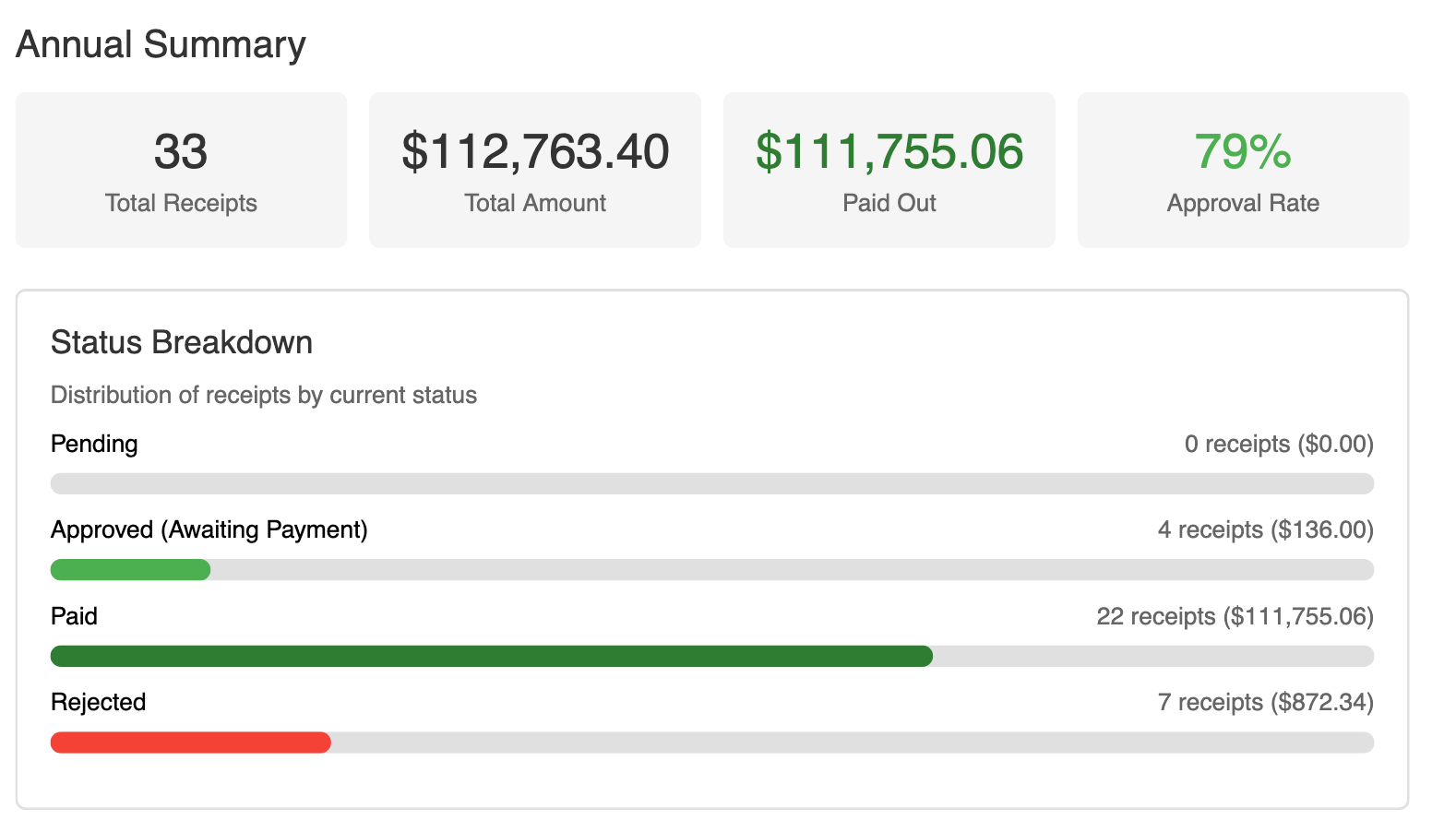
Annual Report
A full-year summary of all chapter expenses. Includes:
- Month-by-month spending totals
- Category breakdown (Food & Dining, Utilities, Maintenance, Events, Supplies, Transportation, Other)
- Aggregate totals for approved, paid, and pending amounts
- Approval rate percentage
Best for end-of-year treasurer reports, chapter audits, and national organization compliance.
Monthly Report
A 6-month comparison view showing spending trends over time. Includes:
- Month-over-month spending comparison
- Category analysis across months
- Timeline view of spending activity
Best for exec board meetings, budget reviews, and identifying spending trends.
What’s Included in Reports
Reports pull from all receipts in your chapter, grouped and aggregated by:
- Category: See exactly how much was spent on food vs. events vs. supplies.
- Status: Totals broken down by pending, approved, paid, and rejected.
- Time Period: Data respects the date filter you’ve set on the admin dashboard (YTD, last 30/60/90 days, or custom range).
Who Can Generate Reports
Only chapter admins and members with expense admin permissions can generate reports. Regular members cannot access the reporting feature.
Tips
- Set the date filter before generating a report to scope it to the period you need.
- Use the annual report at the end of each semester or fiscal year for official records.
- Use the monthly report during exec meetings to discuss budget trends and flag unusual spending.